
Practical Image Editing with GPT Image 2 (Beginner's Guide)
How to preserve composition, edit from URLs or local files, and constrain changes with masks.

If your image workflow keeps breaking your concentration—prompt in one app, download in another, then return to the terminal—this guide shows how to bring Seedream image generation and editing into Gemini CLI through MCP.

What this setup gives you
The useful idea here is not “AI inside a terminal” in the abstract. It is a small, repeatable workflow: Gemini CLI handles the conversation, MCP exposes image tools, and Seedream performs the image operation. Once configured, you can describe an asset in the same session where you are planning or building a project.
The documented integration exposes two tools:
seedream_generate_imagefor text-to-image work with Seedream 4.0, 4.5, and 5.0.seedream_edit_imagefor instruction-based image editing with the same model versions.
That distinction matters. Generation is useful when you need a new hero image, concept, or illustration. Editing is better when you already have a source image and want to change it without rebuilding the visual direction from scratch.
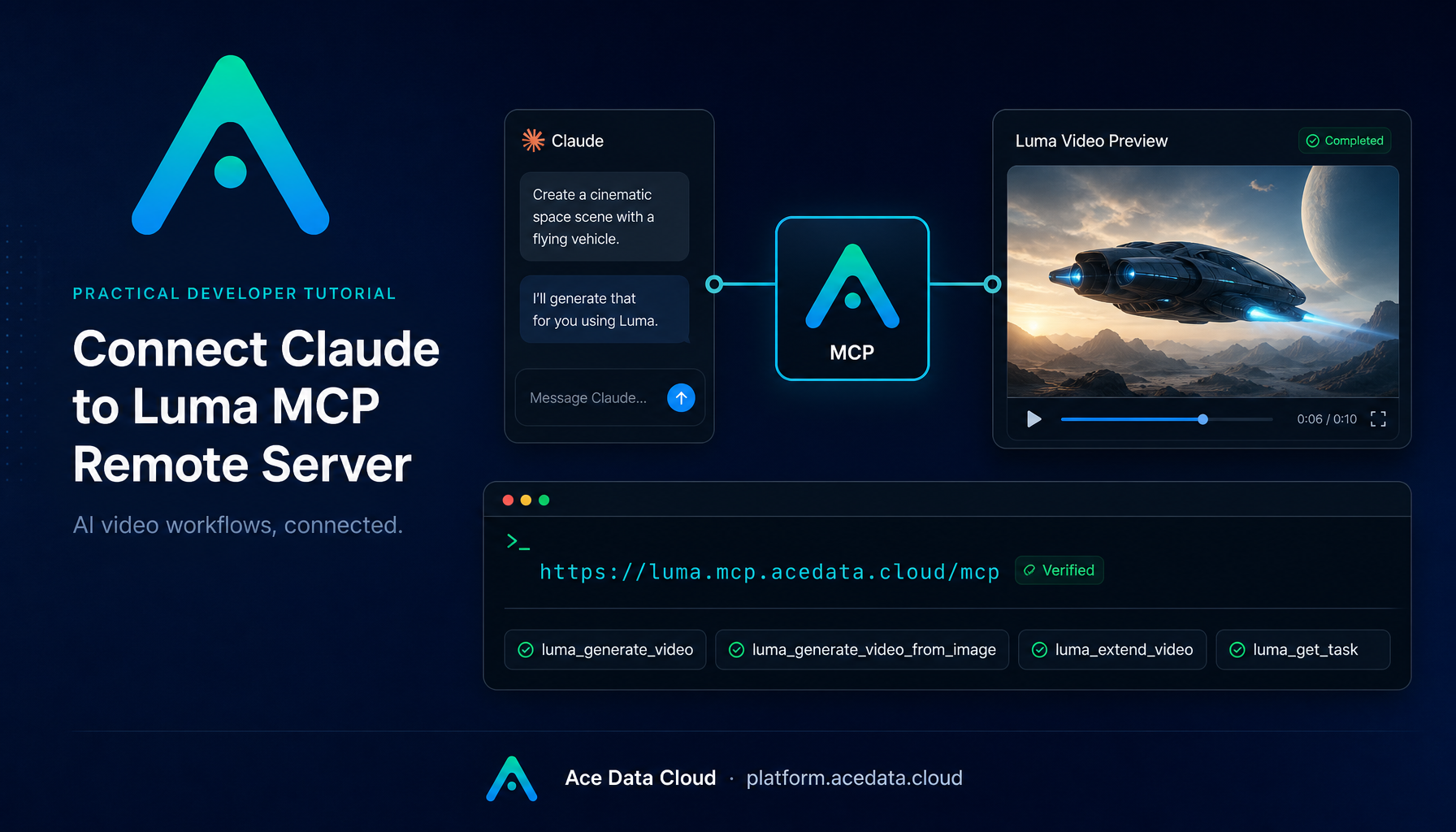
The remote MCP server is:
https://seedream.mcp.acedata.cloud/mcp
Authentication is passed as an HTTP header in this form:
Authorization: Bearer yourToken
Keep the token out of prompts, screenshots, shell history you plan to share, and committed configuration files.
Connect Seedream to Gemini CLI
The shortest setup uses Gemini CLI's MCP command. Replace yourToken locally, then run:
gemini mcp add seedream \
  --transport http \
  https://seedream.mcp.acedata.cloud/mcp \
  --header "Authorization: Bearer yourToken"
This registers a server named seedream, uses HTTP transport, points Gemini CLI at the managed endpoint, and supplies the bearer token required for authenticated calls.
If you prefer a configuration file—often easier to inspect and reproduce—edit ~/.gemini/settings.json instead:
{
  "mcpServers": {
    "seedream": {
      "httpUrl": "https://seedream.mcp.acedata.cloud/mcp",
      "headers": {
        "Authorization": "Bearer yourToken"
      }
    }
  }
}
Start a new gemini session after saving. The integration is loaded in the next session, so an already-running process may not show the tools immediately.
For a real team setup, I would treat the JSON above as a structural example rather than a file to commit with a live credential. The important pieces are the mcpServers object, the seedream entry, httpUrl, and the Authorization header.
Try a focused generation workflow
Begin with a prompt whose visual requirements are easy to verify. The source guide uses a Chinese landscape scenario, which is a good test because the composition contains several distinct elements:
Use Seedream to generate a Chinese-style landscape painting with distant mountains, a stream, and a thatched pavilion.
A practical prompt can add purpose and layout without assuming undocumented API fields:
Use Seedream to generate a wide Chinese-style landscape for a developer blog header. Include distant mountains, a winding stream, and a small thatched pavilion. Keep the center calm and leave visual breathing room around the edges.
The first sentence selects the connected capability in natural language. The rest describes the artifact. Gemini CLI can route the request to seedream_generate_image; you do not need to copy a prompt into a separate image interface.
Another documented direction is a national-trend illustration with koi emerging from water against auspicious clouds. This is useful for testing whether a creative brief with culturally specific subjects survives the tool handoff.
Edit an existing image without leaving the session
Editing follows the same conversational pattern, but it starts from an image reference. The documented use case is simple: provide a photo link and ask Seedream to modify it according to text instructions.
For example:
Use Seedream to edit the image at the URL I provide. Preserve the main subject, replace the background with a restrained Chinese ink-wash landscape, and keep the result suitable for a wide article header.
This should route to seedream_edit_image, rather than the generation tool. Be explicit about what must remain unchanged and what may move. In my experience, edit requests are easier to evaluate when they contain three parts: the source image, the protected elements, and the requested change.
Also avoid combining unrelated transformations in one instruction. A background replacement, typography redesign, subject restyling, and composition change are easier to debug as separate passes.
A small workflow that scales
Once the connection works, use it as a narrow production loop:
- Write a one-sentence purpose for the image.
- Generate one clear visual direction.
- Review composition and subject accuracy.
- Edit only the weakest part.
- Save the final asset alongside the project that uses it.
That loop is less glamorous than endlessly generating variants, but it is much easier to repeat. The real benefit of MCP here is continuity: the image task stays next to the planning and implementation conversation.
I like integrations like this when they remove a small piece of daily friction rather than pretending to replace the craft; the exact setup and supported tools are documented in the Gemini CLI with Seedream MCP guide.