
How to Edit Images with the OpenAI Images Edits API on Ace Data Cloud
Edit and transform existing images with a single OpenAI-compatible endpoint, using dall-e-2, dall-e-3, the GPT Image series, and nano-banana models.
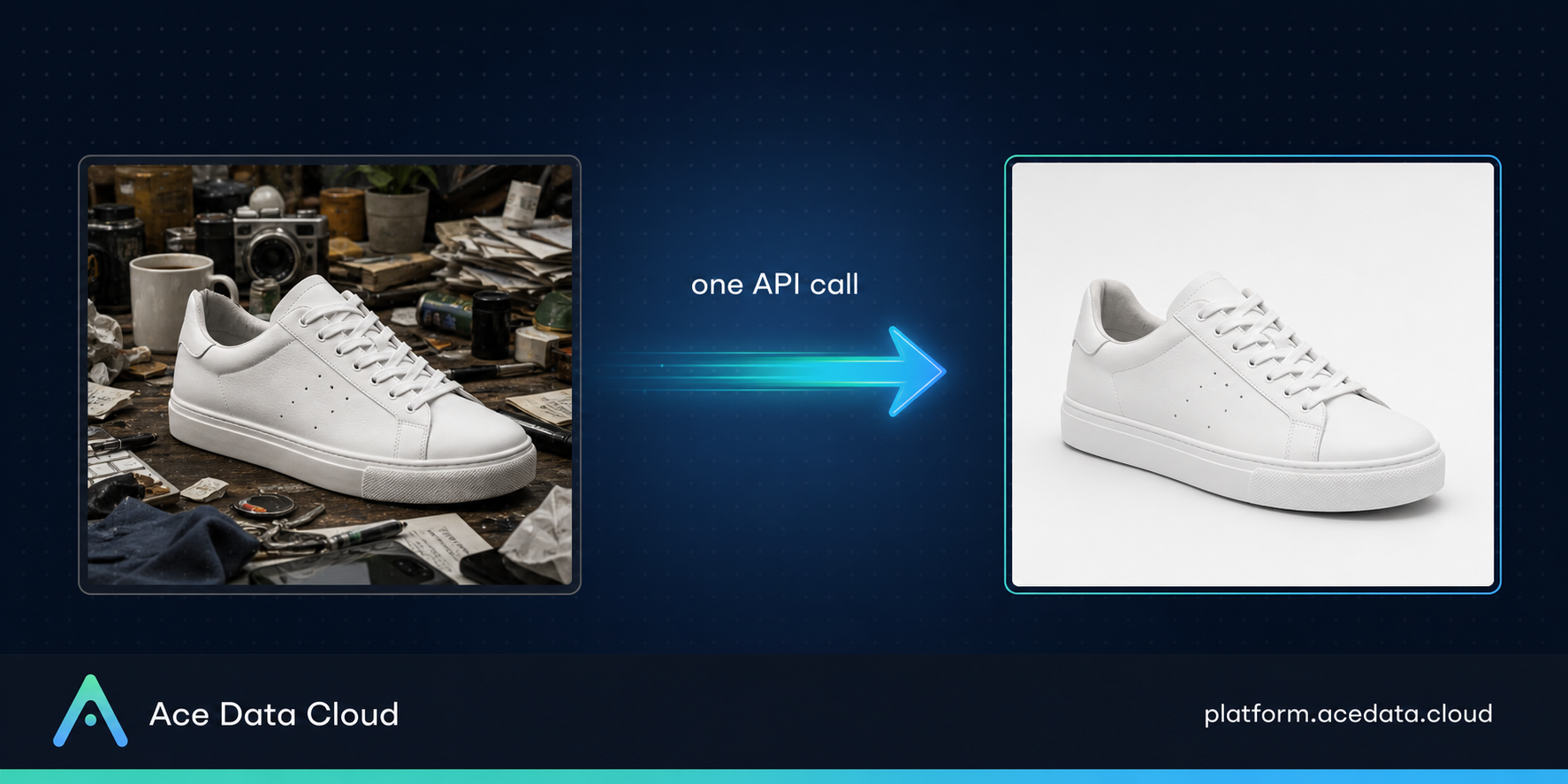
Generating a brand-new image from a text prompt is impressive, but most real product work is not about creating pictures from nothing. It is about changing pictures you already have: removing a background, swapping an object, extending a scene, fixing a detail, or restyling a product shot to match a new campaign. That is exactly what the OpenAI Images Edits API is built for.
In the previous article we looked at how to generate images from scratch. This time we go one step further and edit images with AI through a single OpenAI-compatible endpoint on Ace Data Cloud, using the same account, the same API key, and the same shared balance you already have.
What is the OpenAI Images Edits API?
The Images Edits API takes one or more input images plus a text instruction and returns a modified image. You describe the change you want in plain language, and the model applies it. Depending on the model you choose, you can do inpainting-style edits, object insertion or removal, style transfer, and scene extension.
On Ace Data Cloud this image editing API is model-flexible. A single request can target classic models like dall-e-2 and dall-e-3, the newer GPT Image series (gpt-image-1, gpt-image-1.5, and gpt-image-2), or the nano-banana family (nano-banana, nano-banana-2, and nano-banana-pro). You switch models by changing one field in the request body, so you can benchmark quality and cost without rewriting your integration.
The endpoint
POST https://api.acedata.cloud/openai/images/edits
Every request uses your Ace Data Cloud token in the authorization header. There are two ways to send your image data:
multipart/form-data: upload the raw image file bytes directly. Use this when the image lives on your machine or server.
application/json: reference images by URL instead of uploading bytes. This is the extended mode and is convenient when your images are already hosted somewhere public.
A minimal cURL example
bash
curl -X POST "https://api.acedata.cloud/openai/images/edits" \
  -H "authorization: Bearer YOUR_API_TOKEN" \
  -H "content-type: application/json" \
  -d '{
    "model": "gpt-image-2",
    "image": "https://example.com/product-photo.png",
    "prompt": "Remove the background and place the product on a clean white studio backdrop"
  }'
That is the whole request. One image, one instruction, one model. The response returns your edited image so you can download or display it.
Key request parameters
image (required): the reference image. In JSON mode this is a URL string, or an array of URL strings for models that accept multiple inputs (up to 16). In multipart mode you upload the file bytes instead. Note that JSON mode does not accept raw file bytes, so pick the mode that matches how your images are stored.
prompt (required): the plain-language instruction describing the edit you want. dall-e-2 accepts up to 1,000 characters, while the GPT Image series accepts much longer prompts, up to 32,000 characters, so you can be very specific about the change.
model: which model applies the edit. Options include dall-e-2, dall-e-3, gpt-image-1, gpt-image-1.5, gpt-image-2, and the nano-banana series. For gpt-image-2 you can also pass gpt-image-2:official to use the official relay (supports higher resolutions but costs roughly double per image) or gpt-image-2:reverse for the default, more cost-efficient relay.
n: number of images to generate. This only takes effect for dall-e-2 (1 to 10). For the GPT Image and nano-banana series, values above 1 are silently reduced to 1, so to get multiple variants you send several parallel requests instead.
quality: image quality for the GPT Image series, one of auto, high, medium, or low.
size: output dimensions as WIDTHxHEIGHT, or auto. gpt-image-2 supports 1K, 2K, and 4K presets plus custom sizes (multiples of 16, longer side up to 3840). dall-e-2 supports 256x256, 512x512, and 1024x1024.
output_format: the returned file type for the GPT Image series, one of png, jpeg, or webp.
background: for the GPT Image series, controls transparency of the background when applicable.
Practical use cases
E-commerce product photos: drop a product onto a clean studio background, remove clutter, or generate seasonal variants of the same shot without a reshoot.
Marketing and social creative: restyle an existing banner for a new campaign, change colors, or extend a square image into a wide format for different placements.
Photo cleanup: remove unwanted objects, people, or watermarks from an image, or repair damaged areas. This is where AI inpainting API workflows shine.
Localization: swap on-image text or visual elements to adapt a single master image for different regions.
App features: power an in-app "edit with AI" button so your users can transform their own uploads directly.
Handling errors
The API uses standard HTTP status codes. A 200 response means the edit succeeded and your image is returned. A 400 usually means a malformed request, such as a missing required field or an image that is too large or in an unsupported format. A 401 means the authorization header is missing or the token is invalid. A 429 signals rate limiting, so slow down and retry with backoff. A 500-range code points to a temporary upstream issue, which is worth retrying after a short pause. Always check the status code before assuming you have a valid image back, and log the response body when something fails so you can see the specific reason.
Pricing
Ace Data Cloud uses a shared credit model. Every service draws from one General Balance that automatically covers a service when its dedicated Instance Balance runs out, so you never have to top up each API separately. Image edits are billed per generated image, and the price depends on the model, quality, and size you choose. Approximate per-image costs at the time of writing:
nano-banana: 0.14 credits (about 0.0159 USD) per callgpt-image-2(default reverse relay): 0.11 credits (about 0.0125 USD)gpt-image-2:official(higher resolution): 0.22 credits (about 0.0250 USD)gpt-image-1: 0.2 credits (about 0.0227 USD)gpt-image-1.5: 0.55 credits (about 0.0624 USD)nano-banana-2: 0.28 credits (about 0.0318 USD);nano-banana-pro: 0.35 credits (about 0.0397 USD)dall-e-2: 0.08 to 0.1 credits depending on size (about 0.0091 to 0.0114 USD)dall-e-3standard 1024x1024: 0.25 credits (about 0.0284 USD); hd runs higher
The cheaper reverse relay and nano-banana options make it very affordable to run edits at volume, while the official relay and dall-e-3 hd give you premium output when quality matters most. Because switching models is a one-field change, you can start cheap and upgrade selectively. Check the live pricing page for the current numbers before you budget.
Getting started
To use this OpenAI image editing API you need an Ace Data Cloud account and an API token. Create your account and generate a token from the console, then add credits to your balance. Once you have a token, drop it into the authorization header of the request above, point the image field at your source picture, write your prompt, and send the request. You can test everything from the interactive "Try the API" panel in the docs before writing a single line of code.
Final thoughts
The OpenAI Images Edits API turns "I wish I could change this one thing in the picture" into a single API call. With one OpenAI-compatible endpoint, a shared balance, and the freedom to switch between dall-e, GPT Image, and nano-banana models, Ace Data Cloud makes it practical to add real image editing to your product without stitching together multiple providers.
Coming up next: the OpenAI Responses API, the newer, more flexible way to build agentic and tool-using apps on the same platform. Follow along so you do not miss it.
Start building at platform.acedata.cloud